Table of Contents
ToggleOverwatch 2 on Nintendo Switch brings the fast-paced team-based shooter to your handheld, but it’s a fundamentally different experience than PC or PlayStation. The Switch version launched as a free-to-play title, opening the door for millions of Nintendo fans to jump into Blizzard’s hero shooter. But, playing competitively or seriously on Switch requires understanding its specific performance quirks, optimal hero picks, and setup strategies. If you’re considering Overwatch 2 on Switch or already grinding it out, this guide cuts through the noise and gives you the exact specs, best practices, and honest trade-offs you need to know.
Key Takeaways
- Overwatch 2 on Switch runs at a locked 30 FPS with 1080p docked and 720p handheld resolution, creating a fundamentally different competitive experience than PC or other consoles.
- Controller setup is critical for competitive play—rebind Jump to the right bumper, disable motion controls, and use a Switch Pro Controller to minimize input lag and maintain aim consistency.
- Hero selection matters more than mechanical skill on Switch; prioritize positioning-focused heroes like Reinhardt, Symmetra, and Junkrat that reward game sense and ultimate economy over pixel-perfect aim.
- Ethernet connection via USB-C adapter and a low-input-lag TV (under 30ms) are the most impactful hardware upgrades to reduce Switch’s baseline input lag of 80–120ms.
- Climbing ranked on Switch requires emphasizing ultimate economy, team coordination, and staying alive rather than hunting eliminations—a strategy-first approach beats raw aiming ability.
- Solo queue on Switch matches you against other console players, but queuing with PC friends puts your team at a mechanical disadvantage, so consider this before cross-platform grouping.
How Overwatch 2 Runs On Nintendo Switch
Graphics And Frame Rate Performance
Overwatch 2 runs at 30 FPS (frames per second) on Nintendo Switch in both handheld and docked modes. This is a significant limitation compared to PC versions that hit 144+ FPS, or even PS5 and Xbox Series X at 120 FPS. The 30 FPS cap is a hard ceiling, Blizzard locked it to prioritize stability over frame rate variance. In docked mode connected to a TV, the framerate holds consistently, which is crucial for any team-based shooter where smooth, predictable visuals matter.
Handheld mode maintains the same 30 FPS, making Switch the only platform where playing in portable mode doesn’t mean sacrificing competitive readiness. That said, aiming, tracking enemies, and reacting to fast-moving targets feel noticeably slower compared to higher framerates. Hitscan heroes like Widowmaker and Tracer require adjustment, your brain needs roughly 33 milliseconds between frames, making flick shots harder and tracking enemies more forgiving (which is actually beneficial for some playstyles).
Frame pacing is stable once you’re in-game, assuming your Switch has decent ventilation. Docked mode is preferable for competitive play since a larger screen gives you clearer sight lines, but handheld remains surprisingly playable for quick-play or casual grinding.
Resolution And Visual Trade-Offs
The Switch version runs at 1080p docked and 720p handheld. For a handheld system pushing real-time hero shooter gameplay, this is respectable, but textures and geometry are simplified compared to other platforms. Character models are recognizable, ability effects are clear, and you can read teammate outlines and enemy names, the essentials are there. The art style’s bold colors actually work in Overwatch‘s favor: the visual simplification doesn’t hurt readability as much as it might in a grittier, more realistic shooter.
Visual effects during ultimate abilities (Zarya’s Graviton, Reinhardt’s hammer swings, Genji’s Dragonblade) remain vibrant and visible, which matters when tracking chaos on smaller screens. Dynamic range is compressed, shadows lack depth and reflections are absent, but this keeps the game running smoothly. Performance is solid in 6v6 Team Deathmatch and Elimination modes, where there’s less environmental clutter: Control and Payload maps with multiple explosions and ability spam can dip slightly, though nothing catastrophic.
If you’re coming from PC, expect a visual downgrade. If you’re a lifelong handheld gamer, you’ll find it perfectly adequate.
Setting Up Your Switch For Optimal Play
Console Settings And Network Requirements
Before loading Overwatch 2, go into your Switch’s System Settings and enable High-Speed Internet (5GHz) on your wireless connection. Switch has built-in WiFi that defaults to 2.4GHz, which is more prone to interference and packet loss, crucial killers for a shooter where milliseconds matter. Plug in your console via Ethernet adapter (USB-C) for docked play if possible. Overwatch 2 isn’t insanely bandwidth-hungry, 20-30 Mbps download and 5 Mbps upload are sufficient, but your latency and consistency matter more than raw speed.
In-game, enable Performance Mode (if offered in advanced settings) to prioritize framerate stability over cosmetics. Disable motion blur and turn off motion controls if you’re aiming with the right stick: motion aiming can add input lag that compounds Switch’s already-high baseline latency. Set your audio output to Surround if using headphones or a speaker system: hearing enemy footsteps and ability audio cues (like Widowmaker’s ult charging) is critical.
Network lag on Switch feels more pronounced than on PC because the base 30 FPS already limits responsiveness. Aim for under 80ms ping: anything above 100ms makes hitscan play frustrating. Your region matters, US servers are stable: international players should expect more variance. Restart your Switch every few play sessions to clear network cache: this often improves connection consistency.
Controller Configuration And Customization
The default Switch Pro Controller layout works for Overwatch 2, but competitive players almost universally rebind controls. The stock setup has Jump on Y, which forces you to take your thumb off the right stick when jumping, a nightmare for flick shots and tracking. Here’s the recommended bind layout:
- Jump: Right Bumper (R)
- Ability 1 (E): Left Bumper (L)
- Ability 2 (Q): ZL (left trigger)
- Ultimate (Z): X button
- Reload: Y button
- Melee: Right Stick Click (R3)
This setup keeps your right thumb on the stick at all times and your ability keys within thumb reach. Adjust stick sensitivity based on your hero pool, hitscan heroes benefit from medium sensitivity (5–6), while projectile heroes and tanks can handle slightly higher (6–7) without losing precision. Deadzone can stay at default: increasing it slightly (to 0.15–0.2) reduces stick drift but adds input latency, so leave it unless you’re experiencing hardware issues.
Enable Vibration but set it to Medium instead of Max: excessive rumble masks subtle audio cues and can create input lag. For gyro aiming, disable it entirely if using projectile heroes or tanks, but some hitscan players (especially Widowmaker mains) swear by gyro adjustments for fine-tuning. Try both before committing.
Best Heroes For Console Play On Switch
Hitscan And Close-Range Specialists
Console aiming is always harder than mouse aiming, and Switch’s 30 FPS amplifies this. Tracer becomes a high-risk, high-reward pick, her speed and close-range shotgun bursts favor aggressive positioning over pixel-perfect aim. She’s forgiving if you miss, deadly if you land your shots. Players who excel on Switch Tracer often have high win rates because they’re playing around her strengths (speed, raw damage output) rather than fighting the console’s limitations.
Reaper is arguably the easiest hitscan hero on Switch. His massive spread pattern means you don’t need to flick or track precisely: just get close and fire. He dominates in tight corridor control maps like King’s Row and Gibraltar. Symmetra deserves special mention, her beam weapon auto-locks onto enemies within range, making her a console-specific powerhouse. She’s not meta on PC, but on Switch, her lock-on beam transforms aiming into positioning, which plays to console’s strengths.
Widowmaker is technically playable on Switch but demands significantly more practice than PC. Her hook, mine, and ult are pure value, but landing consistent shots requires gyro aiming adjustments and a ton of muscle memory. She’s viable in ranked but expect to lose many duels against better-positioned heroes. Ashe is more forgiving thanks to her slower rate of fire and larger projectile, she’s slightly better than Widow on Switch but still not a comfort pick for climbing.
Tank And Support Heroes That Shine Handheld
Reinhardt is king on Switch. His hammer is melee-range, his shield is point-and-click positioning, and his ult is massive, slow, and easy to land. He doesn’t require tracking or flicking: he requires game sense and positioning. Rein players on Switch often maintain 55%+ win rates because the hero’s kit aligns perfectly with console mechanics. D.Va is similarly strong, her close-range beam, boosters, and large hitbox make her forgiving while remaining effective.
Lúcio plays fundamentally different on Switch: his hitscan weapon is nearly impossible to use on console, so skilled Lúcio players instead focus on booping enemies and speed-boosting teammates. His wallride mechanic is unchanged, and boops don’t require precision aim. Zenyatta is surprisingly viable thanks to his slow projectiles and large hitbox, his discord orb is a huge utility tool that doesn’t require aiming to apply. His ult charges quickly from healing, making him a consistent value hero.
Mercy and Brigitte are the safest support picks. Mercy requires no aiming, only positioning and beam management, and Brig’s close-range hammer and whip-shot are forgiving. Ana is the exception to the support rule: her hitscan weapon and sleep dart make her difficult on Switch, so unless you’re specifically trained on her, stick with Mercy or Brig if you’re flex-supporting.
Competitive Viability And Ranked Play
Input Lag And Aiming Precision On Switch
Switch has higher baseline input lag than other consoles, roughly 80–120ms from controller input to visual feedback, depending on your TV’s input lag. This is the single biggest factor affecting competitive play. By comparison, PlayStation 5 sits around 50–70ms, and PC with a 144Hz monitor can be under 20ms. That 50ms difference feels massive when aiming against enemies moving at high speeds.
For ranked play, this means hitscan heroes will always feel clunkier on Switch. Your brain anticipates where enemies will be, but by the time your aim catches up, they’ve already repositioned. Projectile heroes actually benefit from this slightly because their slower projectiles forgive early leads. Junkrat becomes surprisingly strong on Switch: his grenades don’t require instant aiming, and his rapid-fire spam fills space effectively. Pharah is also underrated, her splash damage forgives aim inconsistency, and her vertical positioning confuses ground-based Switch aim sensitivity.
The meta on Switch has shifted toward heroes that reward positioning, game sense, and ultimate economy rather than raw mechanical skill. This makes Switch ranked feel less like an aim battle and more like a strategy game. Climbing ranks requires different fundamentals than PC: prioritize staying alive, maximizing ultimate charge, and enabling your team rather than hunting for eliminations. A 40% accuracy Reinhardt with perfect ult timing beats a 60% accuracy Widowmaker who ults at random.
Tips For Climbing Ranks On Console
First, mute all chat. Switch players are often younger, and text chat can be toxic. Focus on shot-calling via team voice (which is cleaner than trying to aim and type simultaneously).
Second, specialize in 2–3 heroes maximum. Console play requires massive muscle memory for sensitivity, stick timings, and habit patterns. Jumping between Widowmaker and Tracer will destroy your consistency. Master one role thoroughly: then learn a secondary in that role. A Reinhardt one-trick will climb faster than a jack-of-all-trades.
Third, use ultimate economy as your rank-climbing tool. At Bronze and Silver, most players ult immediately when charged. Wait for setup. Hold your Zarya ult until your Tracer is in position. Call for your Mercy to damage-boost your Soldier before his ult. On Switch, fighting with ultimate advantage trumps individual mechanic skill.
Fourth, abuse heroes with forgiving mechanics. If you’re not a top-10% aimer, don’t force Widow. Play Symmetra, Lúcio, Junkrat, or Reinhardt, heroes where positioning and ult usage matter more than DPS accuracy. This isn’t cowardice: it’s rational. A Plat Reinhardt is far more valuable than a Gold Widowmaker playing a hero they shouldn’t be on.
Finally, record your matches. The Switch has a video capture button (hold screenshot). Reviewing deaths honestly is how you climb. Nine times out of ten, you’ll realize you died because you were out of position or your team was spread too thin, not because your aim sucked.
Cross-Platform Play And Community
Matchmaking With PC And Console Players
Overwatch 2 uses cross-platform matchmaking. This is critical to understand: if you’re queuing with a PC player, your entire team plays against PC players. If you’re solo queuing on Switch, you match against other console players (PS5, Xbox, Switch). This system exists because mixing PC with console would be unfair, a mid-tier PC player would dominate a top-500 Switch player due to mechanical advantages alone.
The practical impact: playing with friends on PC means accepting that your team will be at a mechanical disadvantage. Your PC Widowmaker friend will outaim everyone on the enemy team’s Switch. Your Tracer needs to play around that. This doesn’t mean you can’t win, coordination and game sense still dominate, but you’ll notice the difference immediately. If you’re climbing ranks seriously on Switch, avoid queuing with PC players unless they’re significantly better than their rank suggests (which compensates for the mechanical disadvantage).
Cross-platform play also means that Switch’s smaller player base gets slightly longer queue times, especially at very high ranks (Master, Grand Master). Peak hours (6–10 PM in your region) have the fastest queues: off-peak times can stretch to 2–3 minutes. Competitive mode has longer queues than Quick Play or Elimination, which is normal.
Finding And Building Your Player Network
The Switch Overwatch community is smaller but tight-knit. Finding teammates requires more effort than on PC, where Discord servers are massive. Start by enabling team voice chat and communicating positively. Players who shotcall, engage with their team, and stay calm naturally attract more friendship requests. Add them. Build a friends list of 15–20 solid players in your skill bracket.
Dumpling’s community hub and various Switch Overwatch Discord servers exist, though they’re less active than PC equivalents. Reddit’s r/Overwatch subreddit has Switch-specific discussion threads: r/NintendoSwitch has gaming community posts. Post clips of your best plays, ask for vod reviews, and engage with other Switch players. The community appreciates effort because it’s smaller, showing up consistently and improving earns respect quickly.
Team finding is viable at Master rank and above. Several semi-competitive Switch Overwatch teams scrim regularly. Searching “Switch Overwatch team” on Reddit or Discord will surface them. Competitive Overwatch Collegiate esports also has Switch options, look into your school’s esports program if you’re student-aged. Esports opportunities on Switch are limited compared to PC, but they exist.
Advanced Switch Setup For Competitive Gaming
Accessory Recommendations And Peripherals
The Switch Pro Controller is mandatory if you’re taking ranked seriously. The Joy-Cons have heavy input lag, mushy buttons, and stick drift issues that compound the platform’s already-high latency. Pro Controller offers better ergonomics, responsive buttons, and sturdier sticks. Cost is roughly $60–70 used: buy a second one as backup because stick drift can develop over time.
A USB-C Ethernet adapter (roughly $15–25) is the single best upgrade for competitive play. Docking your Switch next to your router and connecting Ethernet reduces latency fluctuation. Netgear MR16 and Insignia adapters work reliably. Wi-Fi is playable, but Ethernet removes one variable from the already-limiting latency equation.
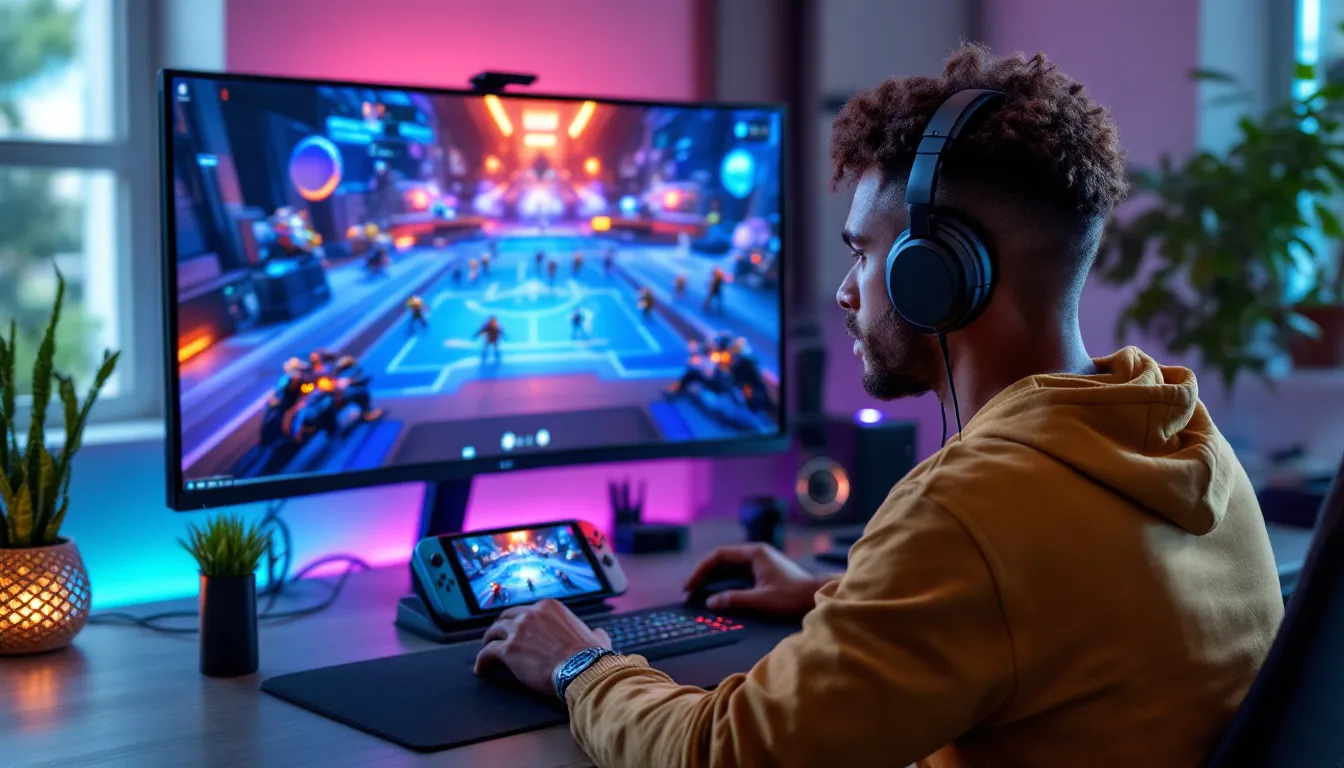
Monitor selection matters. Aim for a TV or monitor under 30ms input lag (check TFT Central for specs). If your TV’s input lag is over 50ms, you’re adding another layer of disadvantage. Gaming monitors are overkill for Switch (they won’t reduce latency below the Switch’s hardware limit), but any modern flat-screen under 40ms input lag is fine. Smaller screens (24–27 inch) are preferable to massive 55-inch TVs because your eyes need less travel to track targets.
Headphones with low latency (not Bluetooth: use a 3.5mm cable or USB-C headphone adapter) matter for audio cues. Footsteps, ability sounds, and ultimate voice lines give away enemy positions. Avoid high-latency Bluetooth: wired is superior. Standard gaming headsets work fine: you don’t need anything expensive, clarity matters more than brand.
Troubleshooting Common Performance Issues
Frame drops and stuttering usually stem from WiFi interference or thermal throttling. Move your Switch closer to your router or switch to 5GHz. If docked, ensure the console has airflow, keep it away from blankets or tight spaces. Restart the console before ranked sessions to clear memory cache.
High ping spikes mean your ISP or network is struggling. Restart your modem and router. Close background apps (Netflix, Discord, anything using bandwidth). If you’re on a shared WiFi network (roommates, family), ask them to pause downloads during your gameplay. Ethernet eliminates 90% of ping spike issues.
Controller input lag or stick drift requires calibration or replacement. Go to System Settings → Controllers and Calibrate Control Sticks. If drift persists after calibration, the sticks need hardware service or replacement. Buy a second Pro Controller to swap in while one gets serviced.
Game crashes during ranked matches are rare but devastating to your SR (skill rating). This is usually a console memory issue. Restart your Switch daily and clear out old cached data (System Settings → Storage → Delete Cached Data). Never play ranked on a Switch that’s been running for 8+ hours straight: thermal throttling can cause instability.
Audio cutting out mid-match happens when USB or headphone connections are loose. Ensure your adapter is firmly seated. If using wireless headphones, switch to wired to eliminate Bluetooth dropouts. Voice chat lag can be reduced by disabling voice modulation or team voice effects in audio settings.
Conclusion
Overwatch 2 on Switch is a legitimate way to play Blizzard’s hero shooter, but it’s not a one-to-one experience with PC or PlayStation. The 30 FPS, higher input lag, and simplified visuals are real limitations that impact mechanical play. Competitive climbing requires different strategies, positioning and game sense trump raw aim. Your hero pool shrinks toward forgiving characters like Reinhardt, Symmetra, and Junkrat. Teams like Overwatch Collegiate have divisions for Switch players, meaning esports opportunities exist if you’re dedicated.
The honest assessment: if you’re a casual player wanting fun with friends, Overwatch 2 on Switch is fantastic. The game is free, portable, and accessible. If you’re grinding ranked seriously, Switch is harder but achievable, you’ll climb slower than a PC one-trick of equal skill, but you can reach high ranks (GM is possible, though rarer than PC). The community is smaller but welcoming.
Your setup matters most: Ethernet over WiFi, Pro Controller only, low-input-lag TV, and good headphones eliminate about 80% of Switch-specific disadvantages. Your mental game matters more than your aim, focus on ultimate economy, positioning, and enabling teammates. The platform isn’t broken: it’s just different. Gamers who accept that reality and optimize accordingly thrive on Switch Overwatch 2.